
Mirror Your Android Phone to a Computer With Ease Today
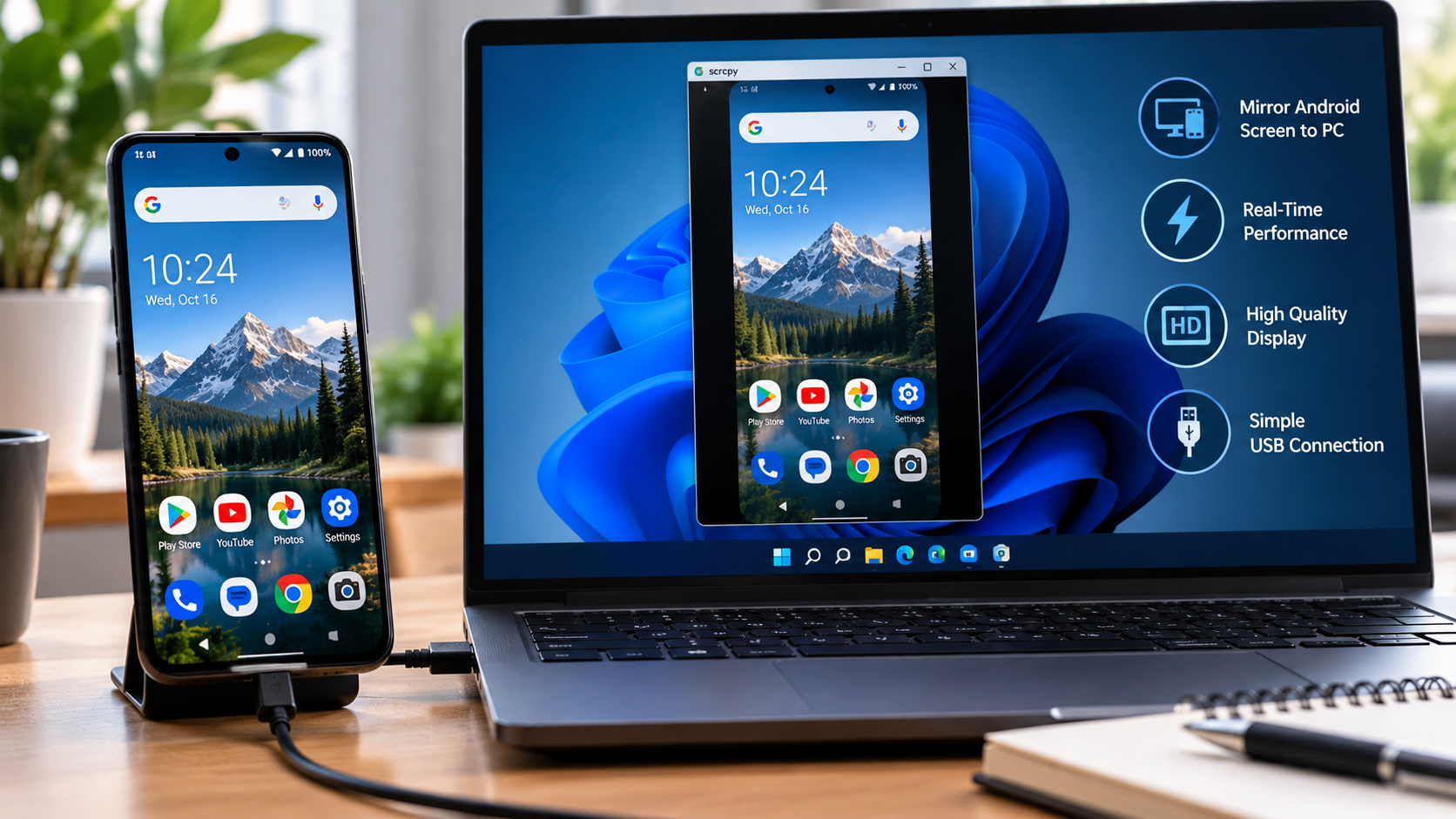
Your phone holds your photos, your messages, your work apps and the small tools you reach for all day. The screen is fine for quick tasks, yet it can feel cramped when you want to show something to other people or type a long reply. Mirroring solves that problem by placing the phone screen on a computer monitor where everything is larger and easier to control.
Once the two screens are linked, you can move through apps with a mouse and type with a real keyboard. Presentations become simpler, training becomes clearer and everyday jobs such as sorting photos or replying to messages feel less tiring. This guide explains how mirroring works, what you need, and how to get a stable setup that you can use every day.
Why a Bigger Screen Changes Phone Work
A larger display changes how a phone feels in daily work. Text is easier to read, small buttons are easier to tap with a pointer, and long forms stop feeling like a chore. People who spend hours on mobile apps often notice less strain on their eyes and hands after moving the view to a desk screen.
Sharing is the other big gain. When a team gathers around one monitor, everyone sees the same screen at the same time, and nobody has to pass a phone around the table. Teachers, trainers and support staff use this to walk through steps slowly while the group follows along without confusion.
What You Need Before You Start
The basic list is short. You need an Android phone, a computer with a screen you like, and a cable that can carry data rather than one made only for charging. A spare cable is worth keeping nearby, since a worn cable is the cause of many failed first attempts.
Most mirroring tools ask you to turn on a developer setting on the phone that allows the computer to talk to it. The setting sounds technical, yet it takes a minute to find in the phone settings and can be turned off again when you no longer need it. After that, the computer and phone can build the link each time you connect them.
Setting Up the Connection
Start by connecting the phone to the computer and unlocking the phone screen. A prompt may appear on the phone asking whether the computer is allowed to connect, and you should accept it when you trust the machine in front of you. Within a few seconds the phone screen should appear in a window on the computer.
Take a moment to adjust the size of that window and the quality of the picture. A larger window helps when you read documents or edit photos, while a smaller window is fine for checking messages. If the picture looks soft, sit closer to the router or return to a cable, since a steady link matters more than raw speed.
Learning From Guides and Good Examples
Every phone model and computer pairing has small quirks, so a clear reference saves time when something looks different on your screen. Many users keep a set of Android screen mirroring guides open while they learn, then return to them when a new phone or a new computer joins the desk. Reading the steps before you change a setting keeps the process calm and orderly.
It also helps to watch how others arrange their desk setup. Some people keep the phone upright in a stand so they can glance at it while they work on the large screen. Others place the phone face down and control everything from the keyboard, which keeps their focus on one display at a time.
Simple Ways to Use Mirroring Each Day
Mirroring earns its place in small daily moments. You can show family photos on a big screen during a call, follow a recipe app while your hands stay clean, or read long articles without holding the phone up. Gamers use it to play mobile titles on a monitor with a controller or keyboard for finer control.
At work the uses grow further. Support teams can record the phone screen to build help material, developers can test apps on a real device while they sit at their desk, and sellers can show a product app to a client in a meeting. Each task uses the same simple link between phone and computer, which is why the habit sticks once people try it.
Fixing Common Problems Without Stress
Most problems come from the cable, the connection setting or a computer that needs a driver update. If the phone does not appear, swap the cable, try another port and confirm the phone is unlocked and set to share data. A restart of both devices clears many small faults and takes less time than deep searching through menus.
A picture that lags or freezes usually points to a busy network or a computer running many heavy programs at once. Close programs you do not need, lower the picture quality in the tool settings and move closer to the router if you connect without a cable. Small changes like these often restore a smooth picture within a minute.
Keeping Your Phone and Data Safe
Treat the link between phone and computer with the same care you give to any work tool. Only approve connection prompts on machines you trust, and remove old computers from the list of allowed devices when you change jobs or sell a laptop. Keep the phone locked when you step away, even when its screen is showing on the monitor.
A Setup That Earns Its Place
Mirroring asks for a short setup and then quietly pays you back every day. Your apps stay the same, your data stays on the phone, and the computer simply gives everything more room to breathe. Start with a cable, learn the few settings that matter, and build the habit one task at a time.

 English
 Arabic
 Spanish
 Portuguese
 Deutsch
 Turkish
 Dutch
 Italiano
 Russian
 Romaian
 Portuguese (Brazil)
 Greek