
Is Your Outlook Different Now? Here's What Changed in 2026
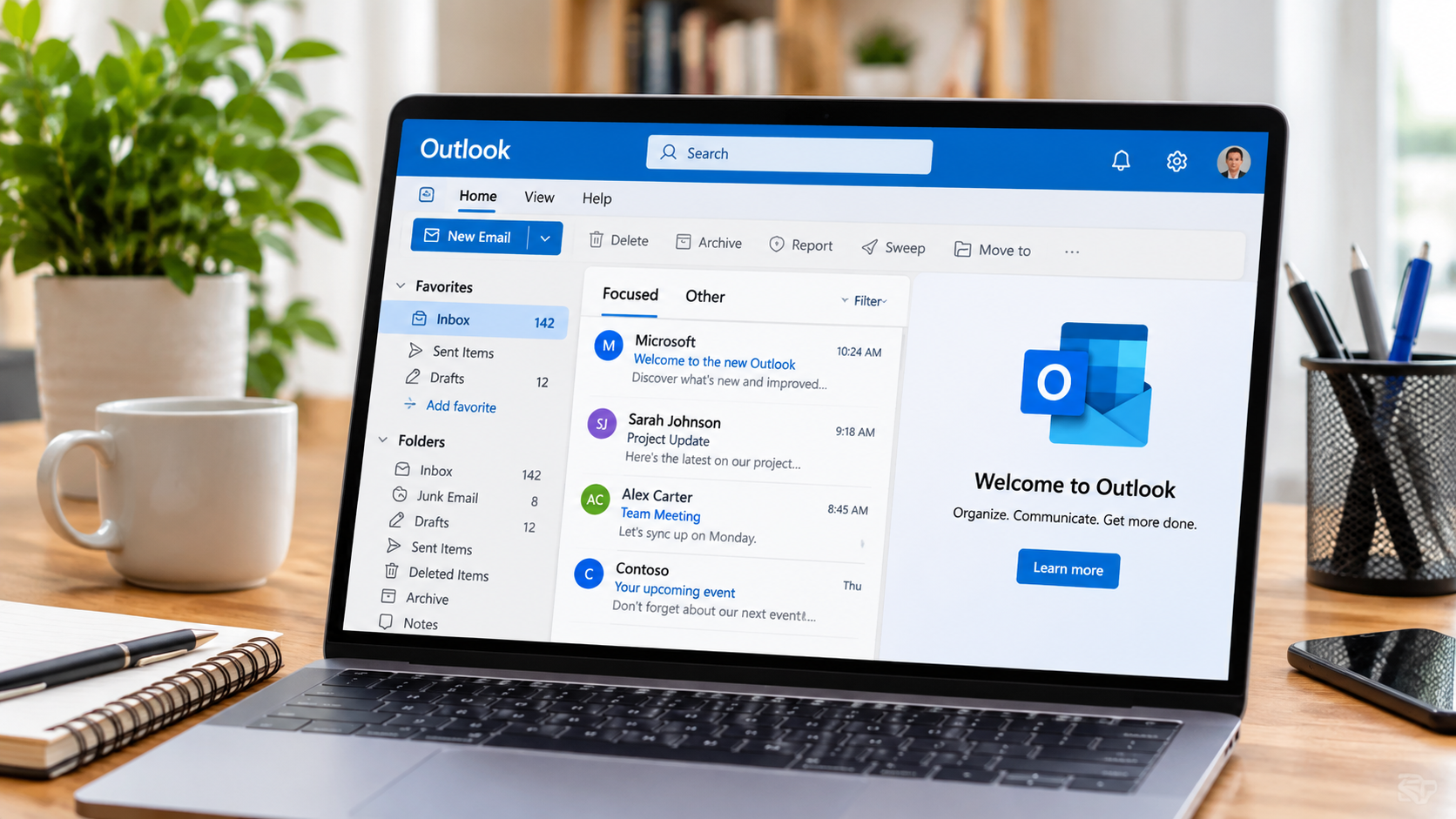
If you opened your inbox recently and felt like someone rearranged your desk overnight, you are not alone. Throughout 2026, Microsoft accelerated the rollout of the New Outlook for Windows while introducing significant visual and functional updates across desktop and classic clients. While these changes aim to unify the user experience across devices, sudden interface shifts often trigger Common Microsoft Office problems that disrupt daily workflows.
Understanding what changed and how to adapt will help you regain control of your inbox without losing productivity.
Major Interface and Navigation Shifts in 2026
Microsoft spent 2026 bridging the gap between its web-first New Outlook design and the muscle memory of longtime desktop users. Several prominent updates reshaped how you navigate daily tasks:
-
Classic-Inspired Ribbon and Overflow Menus: In October 2026, Microsoft introduced a UI style closer to the classic Outlook layout. Secondary suite header actions moved into an overflow menu, which now houses a dedicated manual Sync button so you can force a mailbox refresh on demand.
-
Smarter Search and Multi-Mailbox Queries: Search capabilities expanded significantly. You can now search across multiple mailboxes simultaneously, scope searches down to specific subfolders, and use Search Folders that automatically expire and restore when needed.
-
Streamlined Notifications and Folder Memory: Rather than flooding your screen with individual pop-ups, Outlook now combines multiple new-mail alerts into a single summary notification. It also remembers your exact scroll position and message selection when switching between folders, eliminating the frustration of jumping back to the top of a long list.
-
Expanded Offline Capabilities: Addressing early criticisms of the cloud-centric client, 2026 updates enabled users to compose emails with attachments and inline images, organize folders, and delete or cancel calendar events while completely offline.
Deeper Copilot Integration and Workflow Automation
Beyond layout tweaks, Microsoft embedded AI and rule-based automation deeper into everyday email management. Copilot now supports direct writing coaching inside Copilot Chat, co-authoring suggestions immediately after you paste text into a draft, and an account switcher for shared and delegate calendars.
Meanwhile, productivity staples like Quick Parts returned to the compose context menu, and inbox rules gained conditions for messages that mention you or originate outside your organization, complete with template-based automatic replies.
Troubleshooting Post-Update Glitches
Whenever major software updates roll out, configuration conflicts and sync hiccups tend to follow. Users transitioning to the 2026 builds frequently encounter Microsoft Office common problems such as missing shared mailbox archives, stalled synchronization, or add-in panes behaving unexpectedly after a feature update.
If your inbox stops updating or feels sluggish, check your local sync status using the new overflow menu button, verify that your Microsoft cloud storage quota has not maxed out, or temporarily toggle back to Classic Outlook if critical legacy add-ins fail to load.
Frequently Asked Questions (FAQ)
Can I still switch back to Classic Outlook in 2026?
Yes. If your organization's IT policy permits it, you can use the New Outlook toggle in the top-right corner of the application window to revert to the classic desktop interface.
Why did my notification pop-ups suddenly change?
In September 2026, Microsoft updated Outlook to bundle multiple incoming emails into one summary alert showing the total count of new messages rather than displaying separate banners for each email.
How do I manually force Outlook to send and receive emails now?
Open the overflow menu in the updated suite header at the top of the window and click the Sync button to manually refresh your folders.
Final Thoughts
Software evolution is inevitable, but struggling with unfamiliar interfaces, broken add-ins, or recurring Microsoft Office common problems shouldn't stall your workday. Whether your business needs seamless Microsoft 365 configuration, proactive troubleshooting, or reliable IT support, Ricklefs Technology Solutions, LLC is ready to keep your systems running smoothly. Contact Ricklefs Technology Solutions, LLC today to schedule a consultation and eliminate your tech headaches for good.

 English
 Arabic
 French
 Spanish
 Portuguese
 Deutsch
 Turkish
 Dutch
 Russian
 Romaian
 Portuguese (Brazil)
 Greek